
SHORT SUMMARY
- Best for a task list plus a timer you can’t ignore: Blitzit (Windows and Mac, paid, 7-day free trial).
- Best free options: Pomofocus (browser), Pomotroid (desktop) and Windows 11 Focus Sessions.
- Best for tasks and a timer in one app: TickTick and Focus To-Do.
- Best for phones: Forest and Focus Keeper. Best for iPhone: Be Focused.
- Best for time tracking: Toggl Track.
- How to choose: Pick a visible timer when you ignore it, a task-linked timer when you don’t know what to work on, and a free timer when you only need a clock.
Most people don’t quit the Pomodoro Technique because it fails. They quit because the timer is easy to ignore, or because they sit down with no clear task.
A good app fixes one of those two problems. Some keep the clock on your screen the whole time. Some attach every session to a task. Others are free and start in one click.
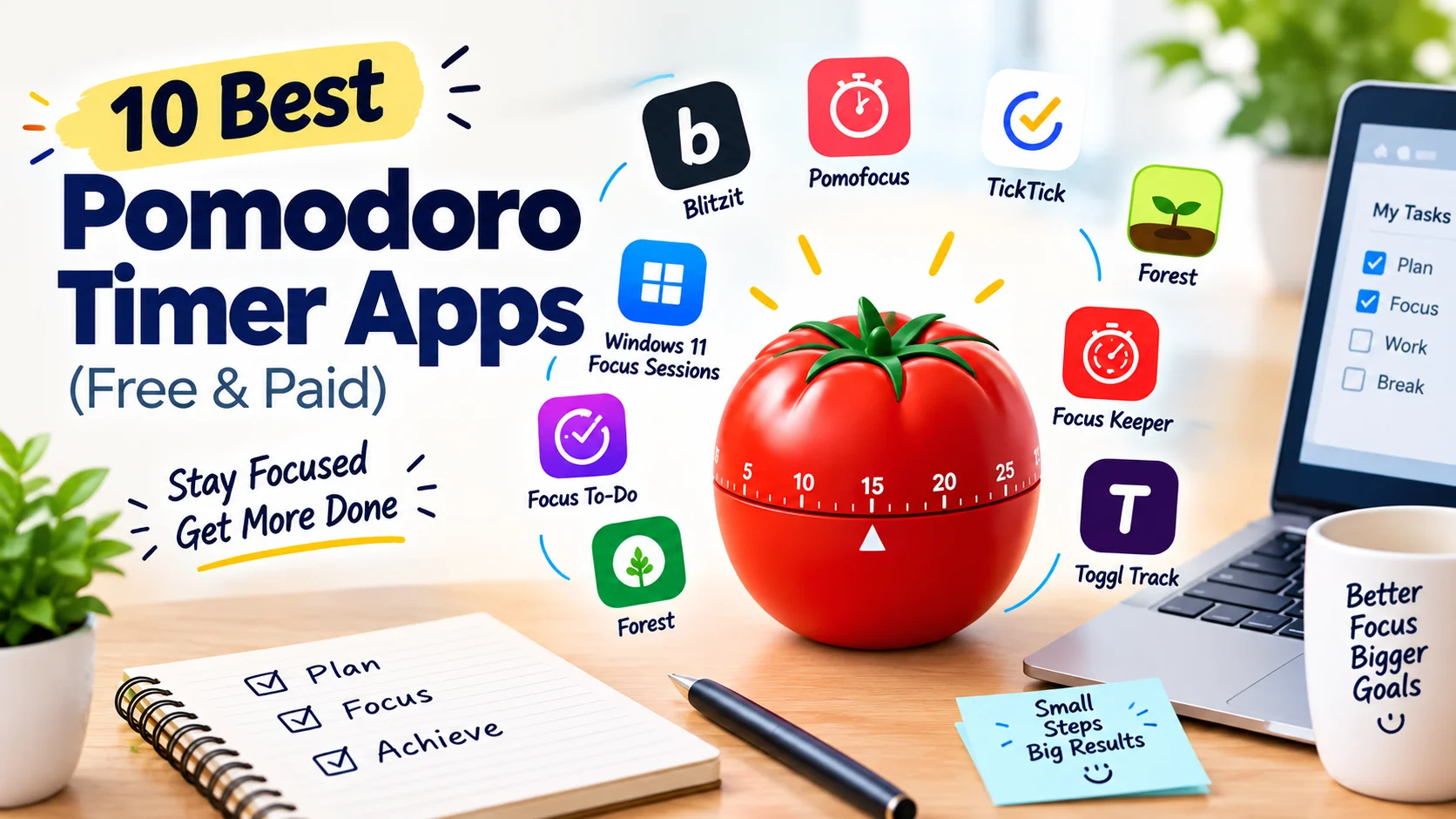
This guide covers 10 Pomodoro timer apps for Windows, Mac, iPhone, Android and the web. It includes a few focus timers that work like Pomodoro apps, such as Forest and the built-in Windows tool. Each entry shows who it suits, where it falls short and how it’s priced.
What is a Pomodoro timer app?
A Pomodoro timer app runs the Pomodoro Technique for you. Francesco Cirillo created the method in the late 1980s. He used a tomato-shaped kitchen timer, and “pomodoro” is Italian for tomato.
The idea is simple. You work for 25 minutes, then rest for 5. After four rounds, you take a longer break. Our guide on how the Pomodoro Technique works explains each step for beginners.
A timer app handles the small jobs:
- Switches between work time and break time
- Counts your finished sessions
- Alerts you when time is up
Some apps do more, such as task lists, time estimates, stats and distraction blockers. Others stay basic on purpose.
What to look for in a Pomodoro app
- A timer you can keep in view. A clock hidden in a tab is easy to forget.
- A link to your tasks. Sessions feel clearer when each one has a job.
- Custom session lengths. The classic 25/5 split doesn’t suit everyone.
- Alerts that ring on time. Some apps miss alerts when the screen is off or the tab is hidden.
- Simple stats. Session counts show you what a normal day looks like.
- A price that fits. Free is enough for many people.
We picked these 10 apps after reading each one’s official pages, feature lists and user reviews. The list covers free and paid options, desktop and phone, and simple and task-based tools. You can read how we score software on our rating methodology page.
The 10 best Pomodoro timer apps
Blitzit: best for turning a task list into focus sessions

Best for: people who ignore their timer
Platforms: Windows and Mac (mobile apps are still early)
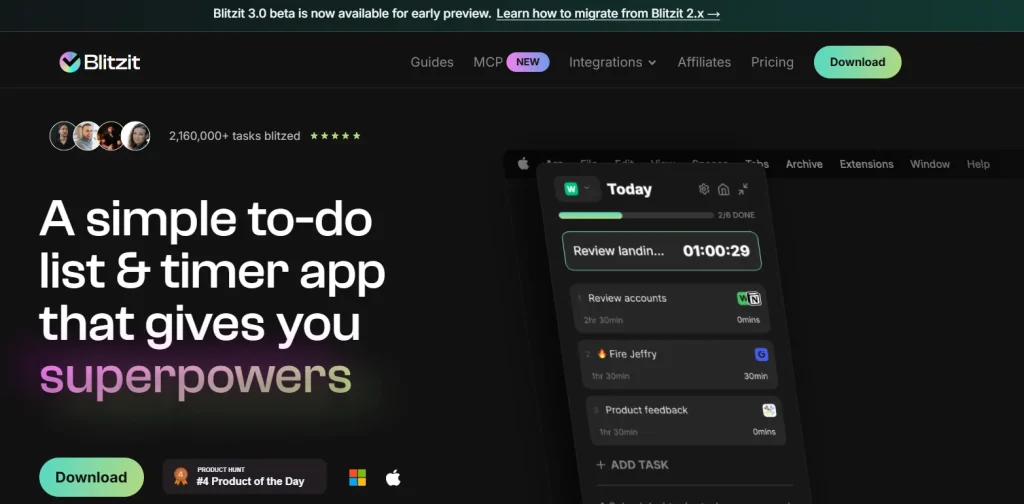
Pricing: Paid. There is a 7-day free trial and no free plan.Blitzit is a task list and a timer in one app. You write your tasks and guess how long each will take. Then you press “Blitz,” and the list shrinks into a small countdown that stays on top of your other windows.
That’s the whole idea. You can’t hide the timer behind a browser tab, so the clock stays in front of you.
What we like
- The timer stays in view, which solves the problem of ignoring the clock.
- Time estimates. You see how long a task really took next to your guess, which helps when you struggle to judge time.
- Custom session lengths. Use the classic 25 minutes, or set longer blocks for deep work.
- Google Calendar and Notion sync.
What to know before you pay
- No free plan. You get 7 days, then you pay.
- It’s desktop-first, so pick another app when you plan to run the timer mostly from your phone.
- Some reviewers find the countdown stressful, so try a gentler timer first when a running clock makes you anxious.
Skip it if: you want a free tool, a phone-first app, or calm background sounds.
Prices change often, so check current plans and offers in our Blitzit review, pricing and alternatives. Ready to test it? Start Blitzit’s 7-day trial.
Pomofocus: best free timer in your browser

Best for: a quick, free timer with nothing to install
Platforms: Any browser, on desktop or mobile
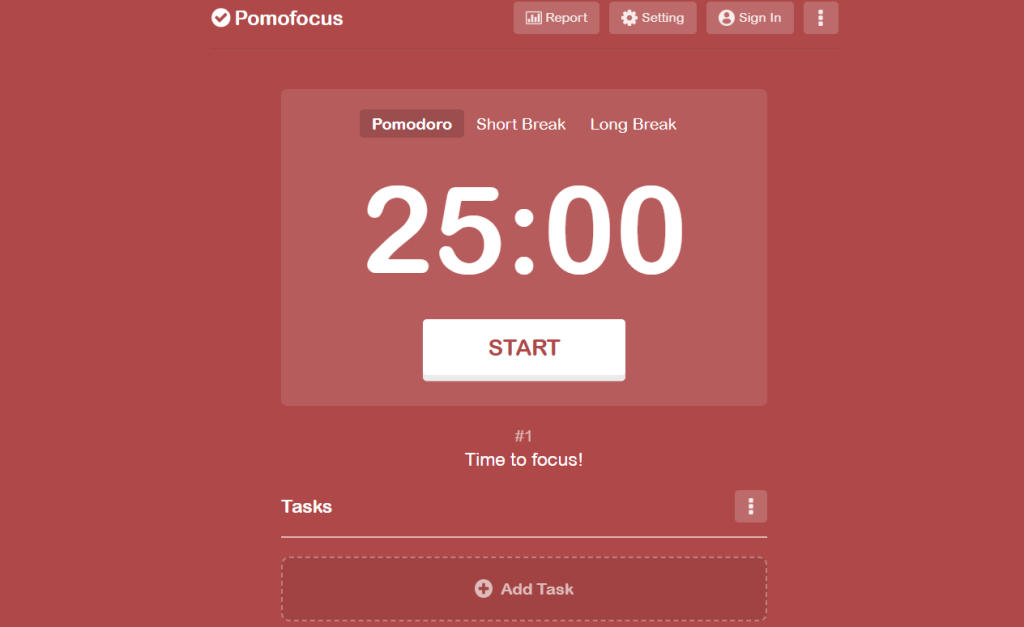
Pricing: Free, with an optional paid upgradePomofocus runs in a browser tab. You set your work and break lengths, add a few tasks, and press start.
It’s fast and simple, which is why it appears in so many “best Pomodoro” lists.
The catch is that it lives in a browser tab. On a phone, a hidden tab may not alert you on time, so test it before you rely on it for a full workday.
Skip it if: you need reliable phone alerts or a timer that stays in view.
TickTick: best all-in-one task manager with a timer

Best for: people who want tasks, a calendar and a timer in one place
Platforms: Web, iOS, Android, Mac and Windows
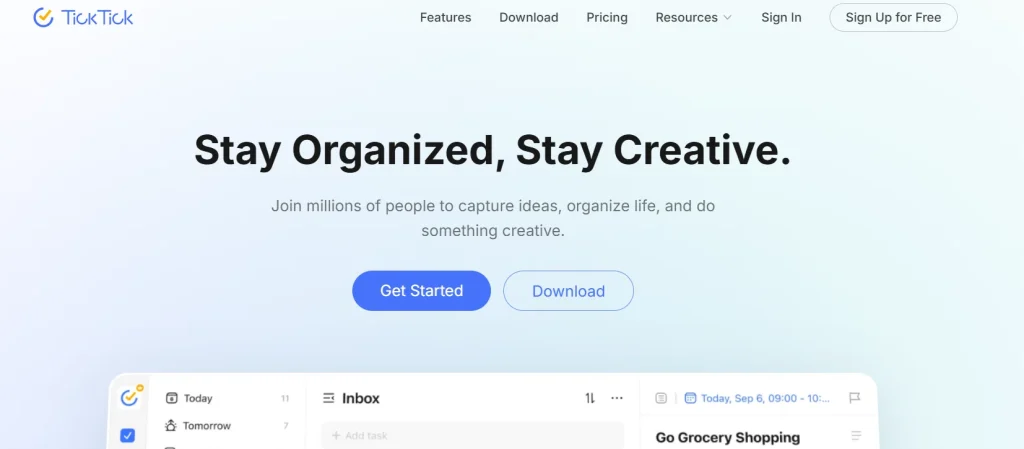
Pricing: Free, with a paid Premium tierTickTick is a full to-do app, and the focus timer is one of its features. You can start a session from any task.
That works well when you already need a task manager. It’s too much when you only want a clock.
Skip it if: you want a light timer and nothing else.
Focus To-Do: best for tasks and timer across devices
Best for: people who want a task list and timer that sync between phone and computer
Platforms: Several desktop and mobile platforms
Pricing: Free, with paid featuresFocus To-Do puts a Pomodoro timer next to a simple task list. You pick a task, start the timer, and the app counts your sessions.
It’s more than a timer and lighter than a full planner.
Skip it if: you don’t need syncing across devices.
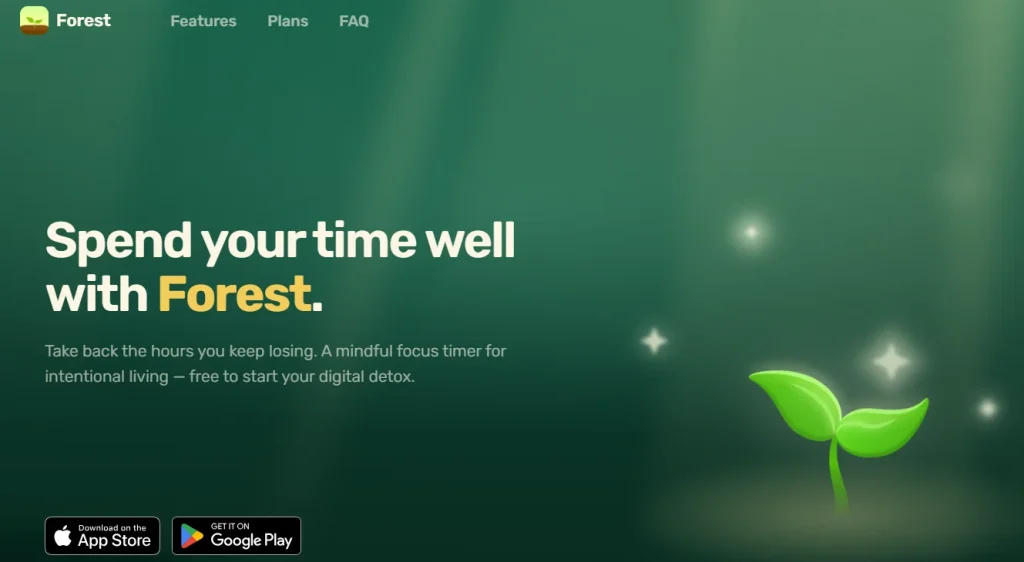
Forest: best for staying off your phone

Best for: people whose biggest distraction is their phone
Platforms: Mobile, plus a browser extension
Pricing: Paid on most platformsForest grows a virtual tree while you focus. Leave the app and the tree dies. That small penalty keeps some people off their phones.
Forest is not a strict Pomodoro app. It’s a focus timer with a default session of 25 minutes.
Skip it if: you need task lists, reports or a desktop tool.
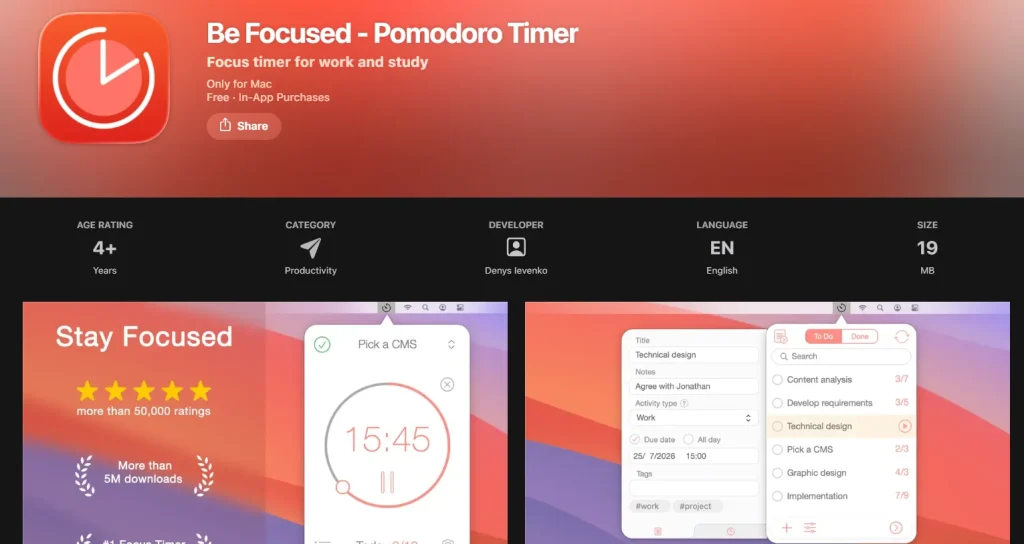
Be Focused: best simple timer for iPhone

Best for: iPhone users who want a free, no-fuss timer
Platforms: iPhone
Pricing: Free to startBe Focused is a simple Pomodoro timer built for the iPhone. It keeps the timer and your task list on one screen, with no setup.
Skip it if: you use Android or Windows, or you want detailed reports.
Toggl Track: best for tracking your time too
Best for: freelancers and anyone who bills by the hour
Platforms: Web, desktop and mobile
Pricing: Free for basic use, with paid plansToggl Track is a time tracker first, with a Pomodoro-style focus timer added. You can time your focus sessions in the same place where you log your hours.
Skip it if: you don’t need time tracking.
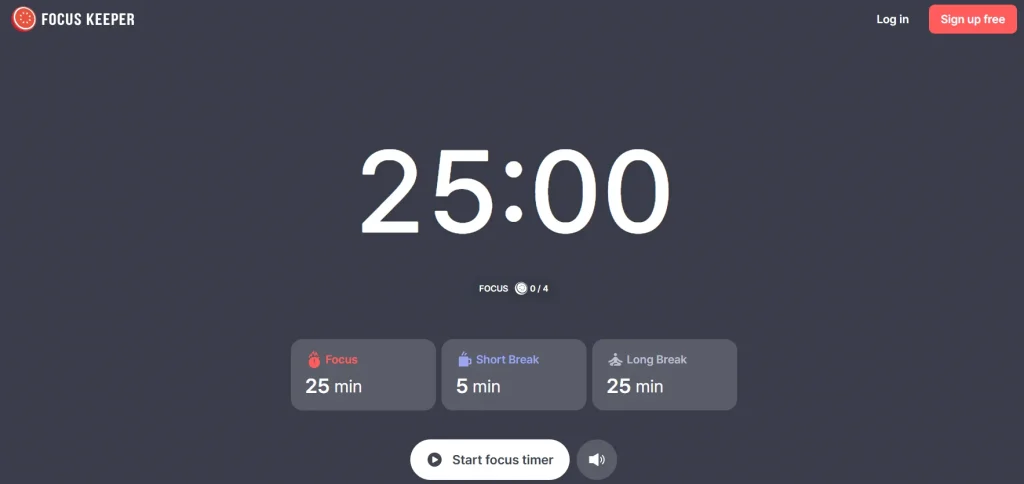
Focus Keeper: best visual timer

Best for: people who like to see time pass
Platforms: Mobile
Pricing: Free version with paid upgradesFocus Keeper shows a colorful timer wheel that fills as you work. It also has simple goals. The wheel makes it easy to see how much time is left at a glance.
Skip it if: you need a desktop timer or a full task manager.
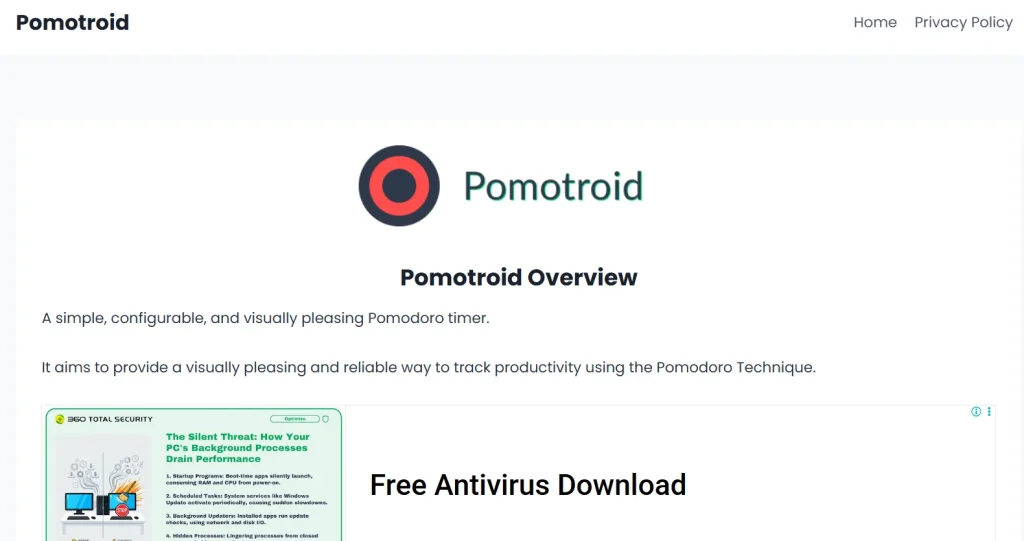
Pomotroid: best plain desktop timer

Best for: people who already use a task app and only want a clean timer
Platforms: Windows, Mac and Linux
Pricing: FreePomotroid is a simple desktop timer with no account and no cloud sync. It has a large countdown and color themes.
It won’t manage your tasks. It only keeps time.
Skip it if: you want tasks, reports or syncing.
Windows 11 Focus Sessions: best built-in free option
Best for: Windows 11 users who don’t want to install anything
Platforms: Windows 11
Pricing: Free, built inWindows 11 has focus sessions inside the Clock app. They work with Do Not Disturb and Microsoft To-Do.
It’s basic, but it’s already on your computer. It’s a good way to try the method before you pick a paid app.
Skip it if: you use a Mac, or you want detailed stats.
Comparison table
| App | Best for | Platforms | Pricing | Task list |
| Blitzit | Tasks plus a visible timer | Windows, Mac | Paid (7-day trial) | Yes |
| Pomofocus | Free browser timer | Browser | Free, optional upgrade | Simple |
| TickTick | All-in-one planning | Web, mobile, desktop | Free, paid Premium | Yes |
| Focus To-Do | Synced tasks and timer | Multi-platform | Free, paid features | Yes |
| Forest | Phone distraction | Mobile, extension | Paid on most platforms | No |
| Be Focused | Simple iPhone timer | iPhone | Free to start | Simple |
| Toggl Track | Time tracking | Web, desktop, mobile | Free, paid plans | Time entries |
| Focus Keeper | Visual timer | Mobile | Free, paid upgrades | Goals |
| Pomotroid | Plain desktop timer | Windows, Mac, Linux | Free | No |
| Windows Focus Sessions | Built-in free option | Windows 11 | Free, built in | Via Microsoft To-Do |
Free or paid: what do you give up?
A free timer is enough when you already know what to work on. Pomofocus, Pomotroid and Windows Focus Sessions do that job well.
Paying makes sense when you need more than a clock, such as task lists, time estimates, sync and reports.
Here is how Blitzit compares with a free browser timer like Pomofocus:
| Blitzit | Free browser timer | |
| Cost | Paid after a 7-day trial | Free |
| Timer stays on top of other windows | Yes | No, it lives in a tab |
| Task list | Yes, with time estimates | Simple |
| Best on | Windows and Mac | Any browser |
Ask yourself one question: “Do I fail because I forget to start, or because I ignore the timer?” A visible timer like Blitzit’s is worth the cost when your answer is the second one.
Which app fits your situation?
- ADHD or trouble with time: Pick a timer you can’t ignore, and keep sessions short. Blitzit and Focus Keeper are good starting points, and our article on the Pomodoro Technique for ADHD explains what to expect.
- Students: Choose something simple and cheap. Pomofocus and Focus Keeper fit well, and you can pair them with these tips on using the Pomodoro Technique for studying.
- Working from home: A desktop app with a visible timer works best. Fixed start times help too, and our guide to staying focused at home with the Pomodoro Technique shows how to set them.
- Computer all day: Blitzit and TickTick both keep your tasks and timer in one window, so you don’t switch apps between sessions.
- iPhone or Android: Be Focused suits iPhone. Forest, Focus Keeper, TickTick and Focus To-Do work on Android.
- Putting things off: Starting is the hard part, so pick an app that begins a session in one tap. Pomofocus and Windows Focus Sessions are the quickest to open.
Set up your first week
An app won’t help without a plan for your sessions. Try this:
- Day 1: Pick one app. Don’t switch for a week.
- Day 1: Write your top 3 tasks and guess how long each will take.
- Days 2–3: Try the classic 25/5 split, then test longer blocks if it feels too short.
- Days 4–5: Compare your guesses to the real time. Adjust.
- End of week: Keep the app, or switch to a different type.
Once your guesses get closer to reality, give each task its own slot in your day. Our guide on time blocking with a Pomodoro timer shows you how.
FAQs
Final verdict
Choose Pomofocus, Pomotroid or Windows Focus Sessions for a free start, and TickTick or Focus To-Do for tasks and a timer together.
Choose Blitzit when your main problem is ignoring the timer. It’s paid and desktop-first, but it’s built for exactly that.